>

9/29/2016

How to fix a phone that does not load?

If your battery is not charging well, will not immediately imagine the worst. Often, the problem is simpler than it seems. Your phone or tablet does not load, or evil? Here are some tips to try before considering replacement.


Why does a phone does support more?

There are two levels of severity when addressing this problem. Either your phone does any more load when plugged or it loads slowly (almost as fast as it discharges). In most cases, the defective element is none other than the cable. It also happens that the micro USB port or USB Type-C is put in question.

Think about the dust

By dint of being in your pocket, the exposed ports on your phone gradually accumulate dust. Dust will be crushed and compressed every time you put your smartphone in charge. After a time, this dirt pile will eventually form a layer that will prevent your device from loading properly.


To face this situation, get yourself a toothpick. Turn off your phone and remove the battery (if possible). Finally, attempt to clean the inside of your micro USB port. If you do not succeed, you can always try to remove the pile using a can of compressed air.

Repair the USB port or even

Often the fastest and most efficient solution is to make a small adjustment to the USB port. Most of the time, expense problems occur due to a small movement of the metal part located inside the port. Thus, this deformation results in a poor connection between the cable and the phone.

As to settle the dust problem, a toothpick will do. Switch off your device and, with the greatest delicacy, pry straighten the metal part. It'll just turn on your phone and see if the problem is resolved.

Exchange cable, mains or battery

A faulty cable, it happens, as well as the failed power supply. Try your charger on other devices, and if you have one, try connecting your device to another feeder. Degradation often occurs when the charger is connected without being used, or when the cable is damaged.

Last solution that thinking, pure and simple battery replacement. If the battery is accessible by removing the dorsal part of the device, and you just order a new one to reset your mobile to nine. High-end mobile are however often unibody, which does not mean it is impossible to open them. Appointments for example iFixit or on specialized forums to find guides and tips specific to your phone.

Use Ampere to identify the problem

Ampere is a free application for identifying a faulty cable. Download it from the link below and connect your device to the suspect cable. Once the application is launched, a green text saying "calculation" should appear. If the text is orange, it means that the current does not flow in your phone.

If Ampere can detect the current flowing, various statistics will be provided. Among them: the current tension, maximum and minimum (milliamperes). It is through this information you can determine what hardware is most useful for your device. In addition, it will show whether the current sent to your device too or not powerful enough.

Finally, if none of this works for you, or you do not feel like doing this kind of manipulation, please go see professional or even play your warranty. If the repairs are not covered by your insurance, it is indeed necessary to remember that quotes will be given and you will estimate if repairs must be performed or not.

9/25/2016

ANDROID MARSHMALLOW 6.0 : TOP 10 TIPS TO DISCOVER


Android 6.0 Marshmallow just comes a year after Lollipop. The new version of Android is actually an improved version of version 5.0 Lollipop.


1. Add the percentage of remaining battery

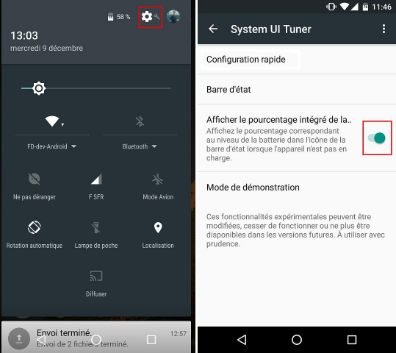
More visually explicit an icon which discharges, show the percentage of the battery was already available from some manufacturers via their overlay. Google now also offers this option. To activate it, simply return to the System Tuner UI menu and select View integrated battery percentage.


2. Explore the contents of the device

Google also made the effort to integrate a file explorer with Android 6.0, it is still the best deal in dedicated applications it can still navigate in the memory of the device to delete or copy A file. To access it will take a path not really fast: Settings and Storage and USB at the bottom of the Explorer list.


3.Manage apps notifications

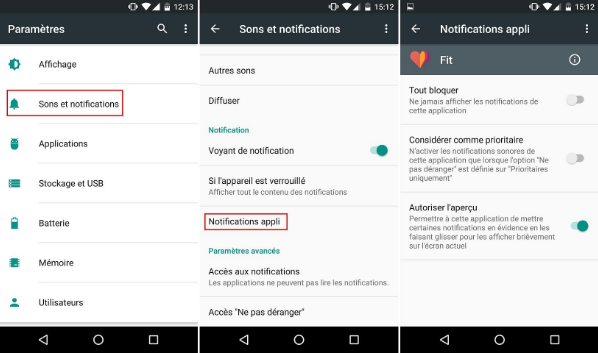
It is possible to prioritize app notifications or simply block this setting has been moved to Settings and then Sounds & Notifications and Notifications app.


4. Manage permissions for your applications

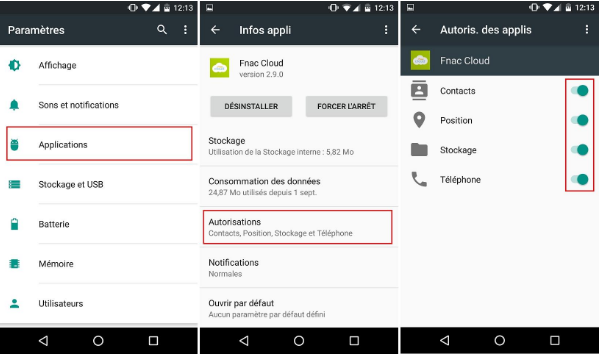
Large new Android 6.0, the ability to give or withhold certain permissions to applications. For it will then access your account in the applications, choose the application from the list and click Permissions, you will then only shoot what you want from the displayed menu.
Attention however not too withdraw authorization failing which the relevant applications no longer function properly.

5. Edit the quick shortcuts bar


This hidden feature to reorganize to convenience the shortcut menu. To get there, do down the notification bar and hold your finger on the cogwheel for 5 seconds, settings and open a new option appeared at the bottom: IU System Tuner. Click Quick Setup and you can rearrange, add or delete your quick settings.

6. Quickly navigate applications

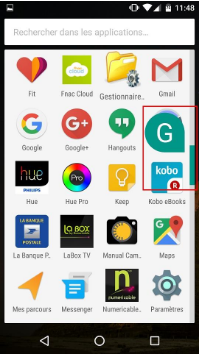
Handy when the list of applications grows, to quickly navigate through the applications menu must keep his finger down on the right sidebar. We slide down or up alphabetically in the applications installed on the device.

7. Change the sound levels in a snap

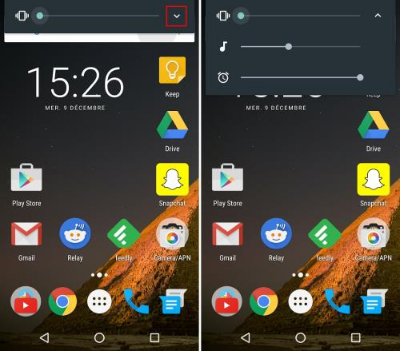
Well known any smartphone user, the volume + or volume- your device to increase or decrease the sound (yes!). The trick here is to quickly adjust the other volumes of the device. By pressing the arrow (visible on the image below) you will develop a menu to adjust the ringer volume, the volume of multimedia content and the volume of the alarm.

8.Discover the Easter Egg Android 6

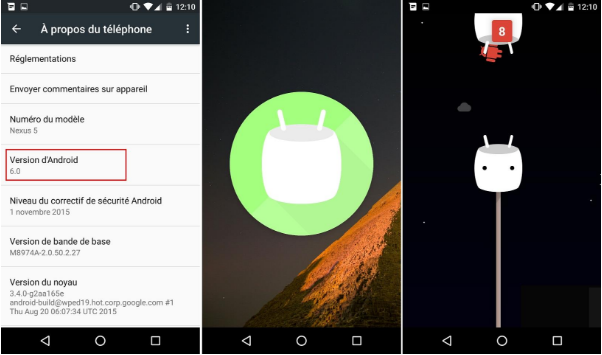
As usual and to mark each new version, Google offers a surprise and I could not conclude these tricks without talking, this time it is a game as a clone of Flappy Bird. To access you must get into about the phone (from settings) and then make several quick taps on Android version 6.0, a Marshmallow logo appears, and then just hold his finger above to let appear the game!


9. Set the Battery Saver

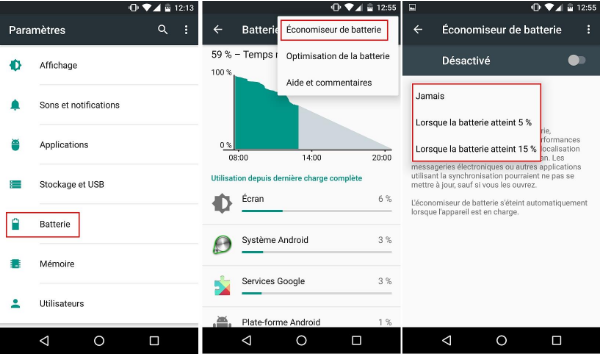
On Android 6.0 it is possible to choose from three battery saving settings when it runs out, for that click on the three dots in the upper right available from Settings, then select and choose Battery Battery Saver. Three settings are possible: Never, when at 5%, when at 15%.


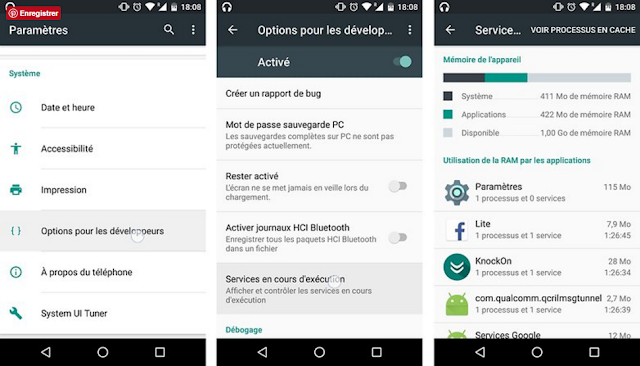
10. See Memory Usage 'RAM' by apps and processes

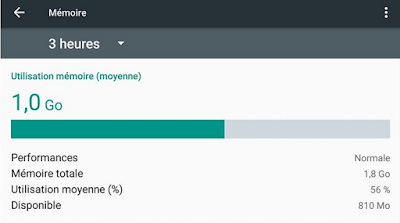
Not to be confused with the menu 'USB Storage' Did you notice the arrival of the menu 'Memory'. From here, a user under Marshmallow can consult at any time the consumption of RAM, say 'RAM', in addition to seeing the implementation of each process and resource consumption. It's just "Awesome! "

Add to that the existence of another function, dedicated running services, which allows for more detail on the occupancy rate of the RAM. You'll understand Marshmallow emphasizes the conso!

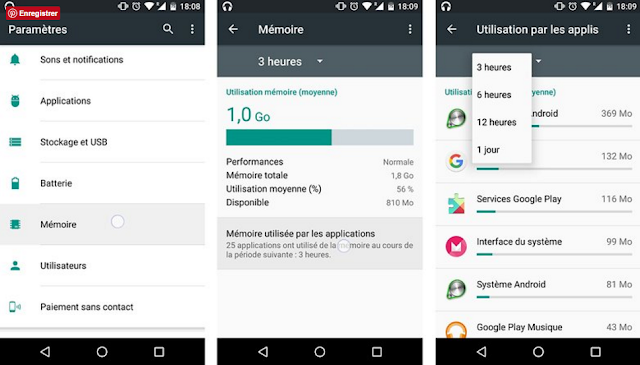
To access and learn about the 'Memory', you must:
  • go to system settings
  • to scroll to the menu 'Memory'
  • From there, you will first comprehensive overview
  • By clicking 'memory used by applications,
  • you will have all the details on the consumption of RAM


Want to go further? To access the 'running services', you must:
  • open system settings
  • down to the options dedicated developers
  • then click on 'running services'


9/24/2016

how to install Android 7.0 Nougat on your Nexus?

how to install Android 7.0 Nougat on your Nexus?
Android 7.0 Nougat is definitely there, at least for the eligible Nexus. You can install it now on the Nexus 6, 6P, 5X, or 9 on the Pixel C, at least by following a few simple steps. Here's how to offer nougat to your smartphone or tablet.

Updated at 17h: Factory pictures begin to be published on Google's site. Here they are for:

‪Android 7.0  Nexus‬‏

  • The Pixel C
  • Nexus 9 (WiFi)
  • Nexus Player
Original article: Things are clear about the Nexus 5 and Nexus 7, all generations: these devices dating from 2013 (or 2012 for the oldest tablets) will not be entitled to Android 7.0 Nougat. However, the Nexus 6, Nexus 5X, 6P Nexus, Nexus 9, Pixel C and General Mobile 4G have indeed entitled to the new version of the OS. Does this mean that it is already possible to enjoy it? Not quite, as the factory images flashed on the devices in this list are still waiting on the Google site. If you also plan to download them when they become available, it will take a few days ... or weeks.
Join the Android Beta Program

Meanwhile, some solutions are already available to you, Owners of appliances mentioned in this list. It suffices to register for Android Beta program, available for a few months: it previously gave you access to the Developer Previews Nougat and since yesterday, allow you to get the OTA Android 7.0. Just sign in with your Google account on this smartphone or tablet on this site and join the program. New members report receiving very fast, sometimes within a few minutes of notification allowing them to download them OTA update. We can not really simple.

For others, the easiest way is always to remain attentive to the updated Google developer site at this address. The factory pictures adapted to Nexus mentioned above should appear there soon, and will be installed by following the procedure detailed in this article. Most experts will in turn try, if they encounter difficulties with these procedures, install the full OTA images already published some models


Heat: your advice to avoid overheating your smartphone

Your smartphone does it too hot?


The sun has set for a few days, for a period of heatwave where temperatures will be around 40 degrees. For individuals, the advice is simple: we must think of drink regularly, stay in the shade and avoid strenuous activities. But for smartphones, better also take sensible precautions to avoid overheating

You may cross the mobile user who early in the morning in a boiling bus, saw its smartphone reboot: it was not a bug but a heat problem that his phone could not handle. And to avoid this kind of inconvenience, ranging from safety lock to damage internal components over the long term, it is better to play the card of caution and limit causes heating.

Limit intensive applications


Last year, all eyes were on the overheating problems of the Snapdragon 810 but do not be fooled, all processors heat, and can cause some problems in the summer. Indeed, certain uses, such as games, permanent activation of GPS or recording videos in 4K tend to increase the heater phones. If you are in the sun in the middle of the afternoon, it is best not to go hunting for Pokémon since more heavily use the processor and graphics chip, the game uses the cellular network and the geographical position of the phone in real time. Overheating guaranteed!

It is also fashionable to close applications running in the background and which consume energy, like location-based applications (Google Maps, Waze, etc.) or social networks (Facebook in particular) which working in the background, consumes energy and therefore emit heat. Also note that it is best not to push your screen brightness to maximum, the backlight making its small contribution to the overall heating of smartphones.


car on care

In the car, where the smartphone risk of experiencing its most difficult hours, it goes without saying that it is not advisable to put it on the dashboard, behind the windshield that would compound the heat. Better in addition, if you use it as a GPS, do not leave it plugged in at the same time: charge a phone is naturally heated, especially when fast charging, and it is not prudent to accumulate causes heating. If you are forced to charge the smartphone for GPS use, prefer a slow load 1 amp.

The Shade

Out of the car, try not to keep your phone in your pants pocket, but rather in a bag, where it will be better ventilated. If you have the chance to spend the day's hottest hours lazing on the sand, remember to take with you an insulated pouch in which you place your phone, so it does not cooks over low heat for you care your tan. If you are not equipped, try to book a little bit of shade for your phone. Similarly, it is best to remove the protective cover - especially if it is plastic - to improve heat dissipation.

What are the risks of overheating?

The heater is not the best friend of electronic components. True, they are designed to achieve extremely high temperatures of over 100 ° C for some components, but this is not necessarily a good idea in the long run. Especially that within a smartphone, there are many components, all as different from each other, each with its specificity. So avoid to heat the whole. In a smartphone, the two elements that heat the most are the battery charge and the SoC, which include in particular the processor and graphics chip.

8/10/2016

Tips to improve the battery life of your android phone


With broad concern for smartphones, today even became the son of two carrying a smartphone concluded one of his parents and uses it, everyone has a problem with the speed of entry into force of the smartphone battery, which caused many many problems have delayed them some appointments.
But certainly that this problem is the toughest problems and everyone is complaining about them so I'm here today to present to you the best methods that Atbatamoha more comfortable and you provide more than the health of the battery.

  • Private android Instructions:
  1. Learn more about what makes the battery energy consumed by going to Settings -> last <-btarah appears you a list of what makes them more battery power consume and if you find the application on the list is rarely used uncheck install and provided more hours of battery
  2. Close and closed any wireless services when they do not need to be used, such as LTE- WiFi-GPS- -NFC

  1. Use the pattern '' Power Saving '' In some of the new phones '' Ultra Power Saving '' & '' Extreme Powers Saving "

It helps a lot to reduce battery power consumption

  4.Remove any applications (Widget) from backgrounds animation main screen

  5.Reducing the number of applications that run in the background and so by going to Settings> Applications - - <then pull the screen to the left menu appears with live applications and there you can click on any application and knowledge of interest from behind and stop it if it were not needed in this timer


8/07/2016

3 tips to free up memory on your smartphone


A full internal memory is as painful as a mobile credit exhausted or empty battery. What about when you end up having to wait for a friend on camera saying, "wait a second, I have to delete stuff to take the picture." To ensure that such a situation does not occur again, you must follow a few steps that we present here.

  • Move data:

3 types of data mainly occupy your memory:

-Application data
-The data cache
-User data (photos, videos, music)
Concerning your personal data, no need to remove them. You can simply move them to another storage space! Connect your smartphone to a computer to cut / paste as DCIM directories, movies, and music.

Even Whatsapp directory contains a myriad of images that should be borne somewhere but without the need to access regularly on your phone. These 4 directories can be moved to your computer without functionality loss

  • Use wisely your SD card:

If you do not have a Galaxy S6, Nexus, and other smartphones completely locked, you probably have a microSD card slot. This, unfortunately, can not be used to automatically complete the system memory, but it can be extremely useful if properly used.

For example, if you add a microSD card to a Galaxy S5, the camera app will ask if you want to automatically save your photos on the map. You can also purchase a micro USB adapter (Leef) in the absence of SD port on your mobile.

  • Synchronization to the Cloud

If the photos, music, and video are the main cause of your lack of available space, it is easy to remedy the problem. Google Play Music, for example, can allow you to play your music from the cloud and save valuable storage space.

8/06/2016

Have you lost your photos from your Android? The solution is here


Each of desperation to retrieve specific files or images in the device before the formate solution here
First, I love the way I say that is guaranteed and what where your root

How needy the first two programs particularly for owners of devices 4.0 and above and II and is important

Special devices 4.0 and above Connector software


The second program is any program that you have a special recovering deleted files and I will put links to the program
Or
Or
These are the pictures from your device software 4.0 and above, and the primary use of the program is to transform the device to the memory you can retrieve files even


8/03/2016

How do you get the Android N 7.0 (Nougat) Boot Animation by everyone!


Android N 7.0 (Nougat) Boot Animation

It seems that the next Android Android 7.0 is available on the advanced features not in terms of what is configurable and also from the work area .. is this The advantage of waiting for the device or the so-called Boot Animation vary from one device to another, as well as from operating system to another, where today we will look at how to get Boot Animation for Android 7.0 before officially issued and on any Android device whatever the number was released.

The first thing that must be noted is that it is you have availability on the application called "Root Explorer" for the amendment to the system files and then download the file the Boot Animation and now will go to this path / system / media, and rename the file "bootanimation. zip "adding" .bak "in the last name to be on this form" bootanimation.zip.bak ".
Download apps:


 After that, move: the file you downloaded bootanimation.zip to the same path / system / media and then direct your amendment to the powers of the file by clicking on the Permissions and adjust the settings shown in the following picture:


And thus re-Nchgal machine waiting for you so that when the device because it is run you will find that it was changing shape and got a distinctive shape, which is also available from Android 7.0 system even before its release and by everyone.


4/19/2016

3 serious applications can anyone to spy on the phone without knowing!


Spying on your phone, not by order bounces. Today, this task has become very easy and you can anyone be carried out, thanks to the many applications that provide you with this feature without the need to be to have a familiar programming or the like. This is very serious applications, and increasingly dangerous in the possibility of monitor everything on your computer and access to sensitive information .dona So we learn about some of these applications, and why you have to beware of their existence in your phone.


Application: mspy


The third application in this list is "mspy" probably may have heard of it before, one of the monitoring programs, spying from a distance, this application is available in the Android system, "IOS", as well as Windows and Mac. This application can monitor everything from the victim's phone.

Application: flexispy


Is one of the most powerful spyware and most famous was his debut with the Android system, and today also covers the iPhone phones, the seriousness of this program lies in the possibility of the machine control completely, meaning anyone can can Tetbit this application on your phone or tablet, you technically can get your information full, with the ability to track the location and know every nook and cranny you make on your computer.

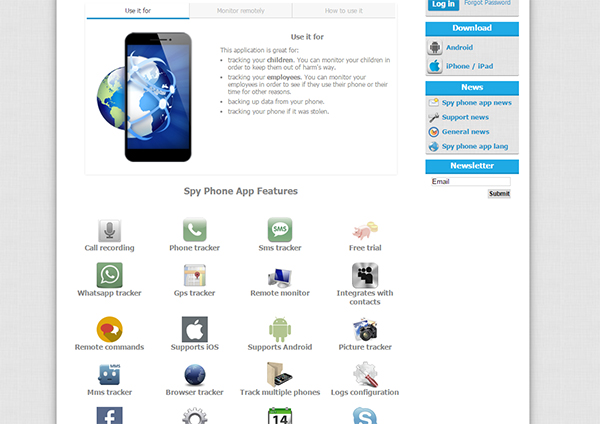
Application: Spy Phone App


No less dangerous than its predecessor, is also considered one of the most powerful spyware and control of smart phones remotely, you can record and track incoming telephone calls and outgoing calls, SMS, location of the phone through LG IPS and knowledge, as well as able to know which sites you visit, To send you send or receive a chat applications such as Alwats August, Facebook, Viper, Skype ...

4/17/2016

A hidden feature in Google Chrome browser safer to open for smartphones

If you use your smart phone to surf the sites through Google Chrome, there is a high probability that you someday deceived and entered harmless sites that may be filled with malicious Balbrmjeatt, and this problem will not be the major damage for computer users, as Google Chrome in the desktop version equipped since the long time on browsing security, what is the browsing security? And how you can benefit from it on your phone?


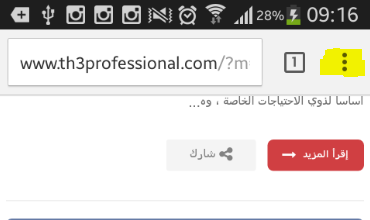
Safe Browsing is a tool or feature you can protect your system from malicious software and which may contain some sites, but about how to take advantage of it in your phone simple way in and will not cost you a click of a button, where you only need access to the Google Chrome browser to your device as the first step, then-click on the above three points


Now go to "Settings" Settings, and then towards the "Advanced" and settings to the "Privacy"


In the latter went to the "Safe Browsing box", and activate it if it is not so.


That everything in it, and I also saw a very easy way, and may help you avoid many of the problems and the click of a button, while we find a lot of people are ignoring these circumstances such useful things.

4/16/2016

10 tips to correct problems in the Google Play Store

10 tips to fix Google Play Store related problems


The causes of the Google Play Store Errors can be diverse and varied ... Bugs nuisance, problems with the download of a software update, disorders associated with a third party application unstable ... A set of abnormalities that you will probably be possible correct through our guide.


  • Check the status of your VPN or Proxy


Tutoriel Google Play Store Wi-Fi

When you activate a proxy or VPN, Google Play Store malfunctions may occur. You can disable these tools in "Settings," "Wi-Fi" and "Advanced Settings".


  • Setting the date and time of your smartphone

Some applications require accurate verification of parameters "Date and Time", which you can view via the appropriate submenu. Feel free to check that the proposed time zone corresponding to your area, you never know.
  • Reset your phone to factory settings

For starters, know that performing this operation, you will be taken prior to having to copy your personal data on a storage space you've chosen (computer, cloud, external hard drive ...). Resetting your smartphone is a final approach uses the equivalent of a last chance because everything will be erased. After you have made in the "Settings" menu, select "Backup & reset". Do not forget to check "Backing up my data" in order to retain certain information (passwords, contacts ...). This being done, you are left to "Restore to factory settings."

Tutoriel Google Play Store Sauvegarde
The cleverest of you with a ROOTE smartphone will also be able to access the file hosts.txt, it is possible to remove by directly accessing the system. Obviously, this type of manipulation is risky, take your precautions.

  • Clear cache / Clear data from your Google Play Store app:

In most cases, this manipulation will allow you to solve most problems related to the Google Play Store. Indeed, if the cache will keep some data effectively to optimize among other things the speed of navigation within the user interface, it can occasionally cause malfunctions in the system.
Thus, to purge this storage space, simply go to the "Settings" menu and then "Application Management". Go to the application "Google Play Store" and click "Empty Cache" after leaving scroll your finger down the screen.

If this first operation is unsuccessful, you are able to restore the application by clicking on the button "Clear Data" located in the same sub-menu (see Figure 3 above).
  • Download the latest version of Google Play Store

It may be wise to check the status of your software, determining if it is updated (or not). Know that in general, the updates from the Google Play store may take several days to download automatically, manual verification can thus compensate for this delay.
  • Clear the cache of Google Play Services

Truly related to the operation of Google Play Store, this application can be emptied of its cache in the same way as before. This manipulation may well help you solve some anomalies detected.

Tutoriel Google Play Store Services Google Play


  • Update Google Play Services
As for the tip number 2, Google Play Services should be updated. Even if your smartphone offers regularly updated, feel free to check for yourself.


  • Enable Download Manager
In case of unfortunate off your Download Manager, it is possible to reactivate it in "Settings," "Applications" and then "Download Manager" and click the appropriate button.


  • Remove and reconnect your Google Play account

This manipulation suggest you delete your Google Account (smartphones only) to disable it. After entering the "Settings" menu, then "Accounts", select the Google account you set up, then delete it. You can then recreate it by taking the opposite approach.


Tutoriel Google Play Store Google

If all of these tips have been helpful, or if you want to bring your stone to the building by adding information or feedback, feel free to leave us a comment.


4/15/2016

How to change the icons of applications launcher without no root?

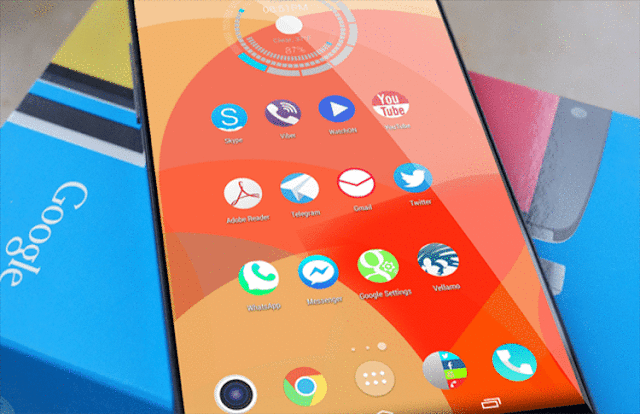
The icons for Android apps are not always the best effect, especially since manufacturers are quick to change, sometimes making it even more ugly than the origin. Fortunately, there are more and more opportunities to give them a new look. Follow the guide.


If you do not like the new icons Google, you may want to change it. For some, this problem can be circumvented through the built-in theme manager natively on their phone or tablet, but all manufacturers do not offer, and it can be difficult to find happiness. As many opt for a more personal approach, therefore.

For those who have alternative launcher like Apex or Nova, you can change the icons for the settings, but for others, sometimes the solution is even simpler and is named Awesome icons. This application, however, only create new shortcuts on the home screen and does not support all the interfaces having no application drawer. This alternative is therefore intended rather to those who get tired of the icons of TouchWiz (Samsung) or Sense (HTC) to name a few, rather than EMUI (Huawei Honor) and MIUI (Xiaomi).

Awesome iconsMomo apps


Awesome icons makes it possible to change the icon of any application from an existing package, an image found in the phone memory or even a photo. And all in just a few clicks!


Change an icon with Awesome icons

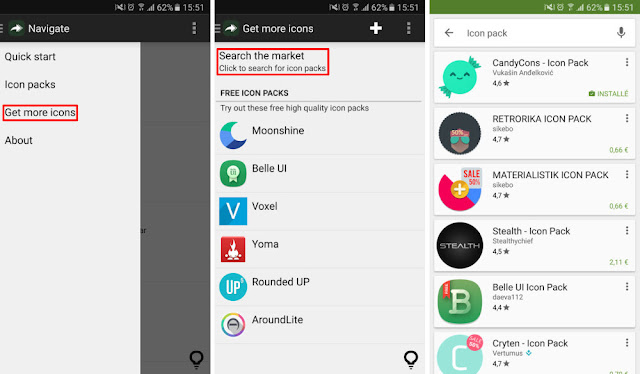
After downloading the app, launch it and go directly to the Get more menu icons section (which opens by sliding your finger to the right from the left edge of the screen). Here, a selection of packages is offered, but you can find even more, whether free or paid, by clicking the option Search the market.


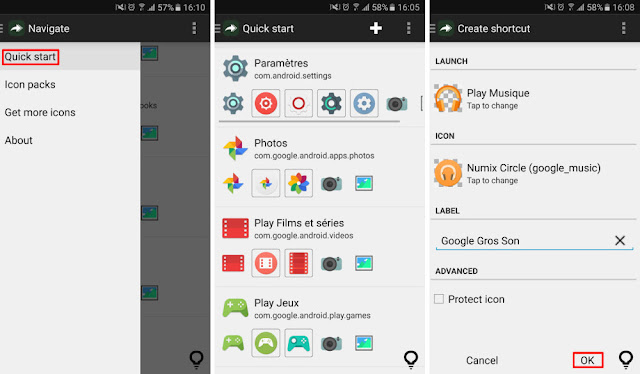
It is then possible to change the icon for each application one by one through the Quick Start section. In it is a list of all your applications, leaving you every time the choice between different dedicated icons available in your library. To apply, you simply click on it and then in the next window click on OK after eventually chosen an alternative name in the Label box.


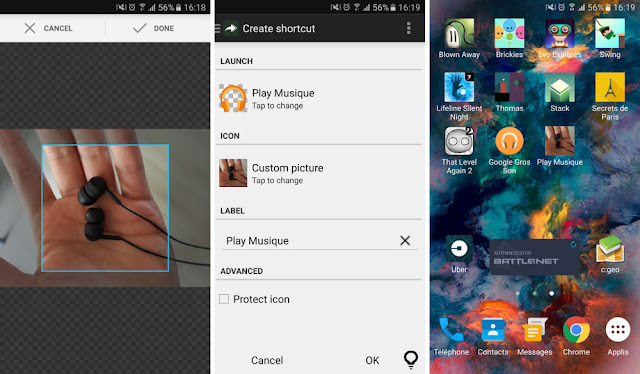
If no icon pack suits you, you can go even further by selecting the camera to take a picture of your future icon, or table to select an image from your gallery. The rest of the procedure remains the same.

Notice that once you created shortcuts, you can move freely on your screens or on your dock. Furthermore, they persist even after uninstalling the icon packs and Awesome icons.